

“Be more productive” is common advice, but rarely helpful on its own. What most people actually need is fewer distractions, fewer steps, and smoother systems. That’s why AI tools are showing up everywhere: not as magic robots, but as small, practical helpers that remove the slow parts of everyday work.
When AI is used well, it feels like having a calm assistant who can draft, organize, rephrase, and summarize on command. You still make the decisions. You still own the result. But you stop wasting energy on blank pages, repetitive wording, and copy-paste chores.
This guide breaks down how AI tools change daily productivity in a human, realistic way—especially for resume writing and email automation—plus the common mistakes, a checklist you can actually use, and a set of “practical notes” based on patterns that show up again and again in real workflows.
What “AI Productivity” Really Means
AI productivity isn’t about doing everything automatically. It’s about compressing the distance between a rough idea and a usable output. Most of the time, that distance is filled with tiny obstacles:
- Not knowing how to start
- Not being sure how formal to sound
- Not having the energy to rewrite something for the third time
- Not remembering what you said in the last email thread
AI tools help with those obstacles because they’re good at language, structure, and pattern recognition. They can propose a first draft, suggest alternative phrasing, and turn messy notes into clear steps.
Where AI Tools Create the Biggest Everyday Wins

Not every task benefits equally. The biggest gains usually show up in work that is repetitive, language-heavy, or easy to delay because it feels annoying rather than difficult.
1) Writing and rewriting
AI writing assistants can generate drafts, rewrite for clarity, and adjust tone. They’re especially useful when you know what you want to say but can’t find the cleanest wording.
If you want a deeper comparison of writing-focused tools and practical workflows, you can explore our dedicated guide on AI Writing Tools.
2) Summaries and meeting notes
AI can turn long notes into short takeaways and action items. This is one of the fastest ways to “get time back,” because summaries reduce rereading and help teams stay aligned.
For a deeper look at how AI can support knowledge management and long-term focus, read our guide on AI-Powered Second Brain for Effortless Productivity.
3) Email drafting and reply acceleration
Email is a productivity trap because it hides time costs in small decisions: greeting style, length, tone, follow-ups, and “how do I say this without sounding rude?” AI can generate a strong draft quickly, leaving you to approve, personalize, and send.
AI for Resume Writing: Practical, Not Magical
Resumes are hard for a simple reason: you’re trying to explain your value in a tiny space, to both humans and automated systems. AI can help, but only if you treat it as a tool for clarity, not fabrication.
What AI can improve in a resume
- Structure: turning long paragraphs into scannable bullets
- Clarity: removing vague phrases like “responsible for”
- Relevance: aligning bullets to the job’s needs without copying it
- Consistency: tense, formatting, and voice across sections
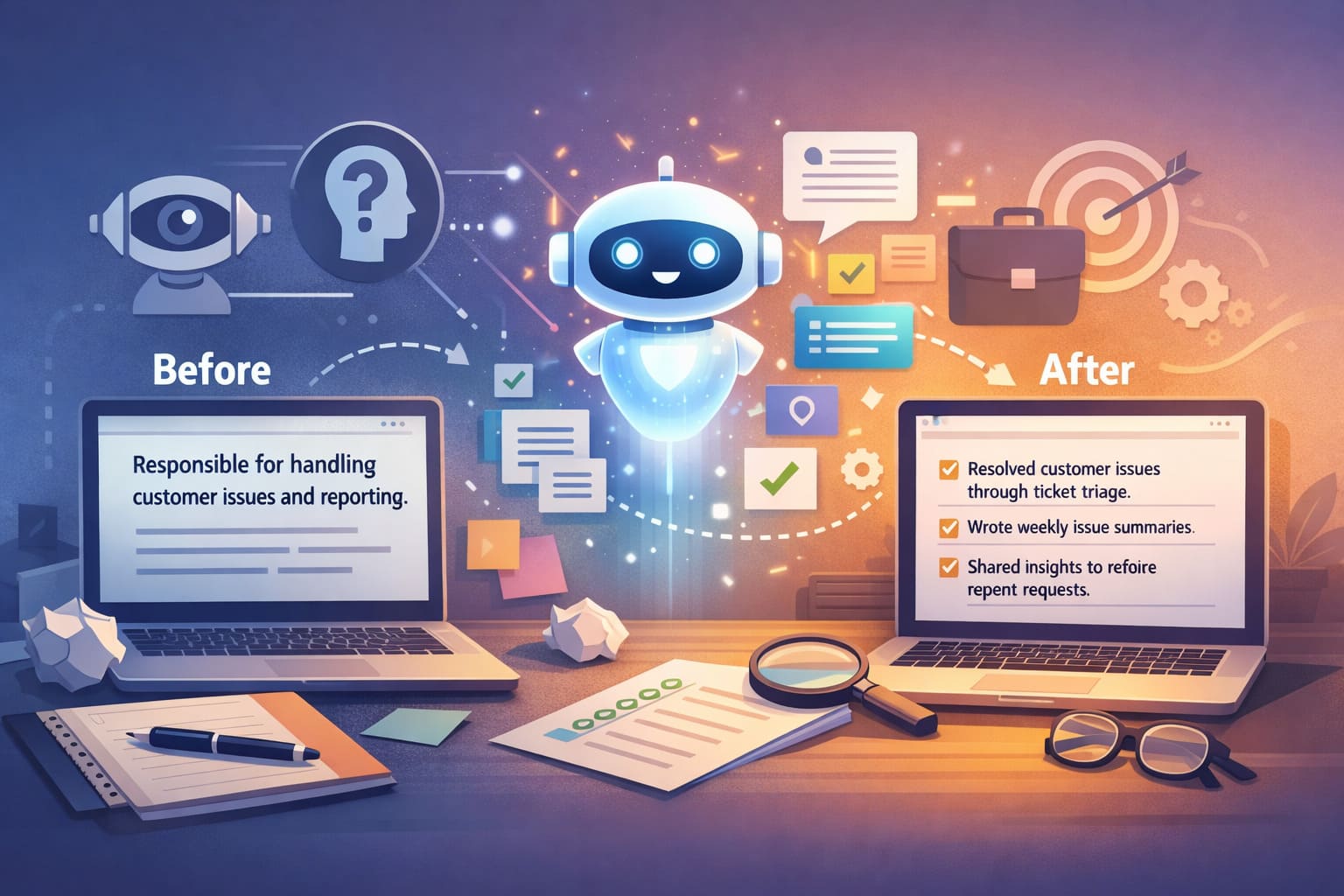
A small “before vs after” example
Before: “Responsible for handling customer issues and reporting.”
After: “Handled customer issues by prioritizing support tickets, creating weekly issue summaries, and sharing recurring trends with the team to minimize repeat requests.”
Same experience. Better signal.
How to prompt an AI resume assistant (without getting generic output)
Generic prompts produce generic resumes. Try prompts that include context and constraints, like:
- “Rewrite these bullets to emphasize outcomes, keep them honest, and use simple verbs. Limit each bullet to one sentence.”
- “Suggest 6 ATS-friendly keywords based on this job description, but only if I can justify them with my experience.”
- “Turn this project description into 3 resume bullets: one technical, one teamwork, one impact.”
AI for Email Automation: Speed Without Losing Your Voice
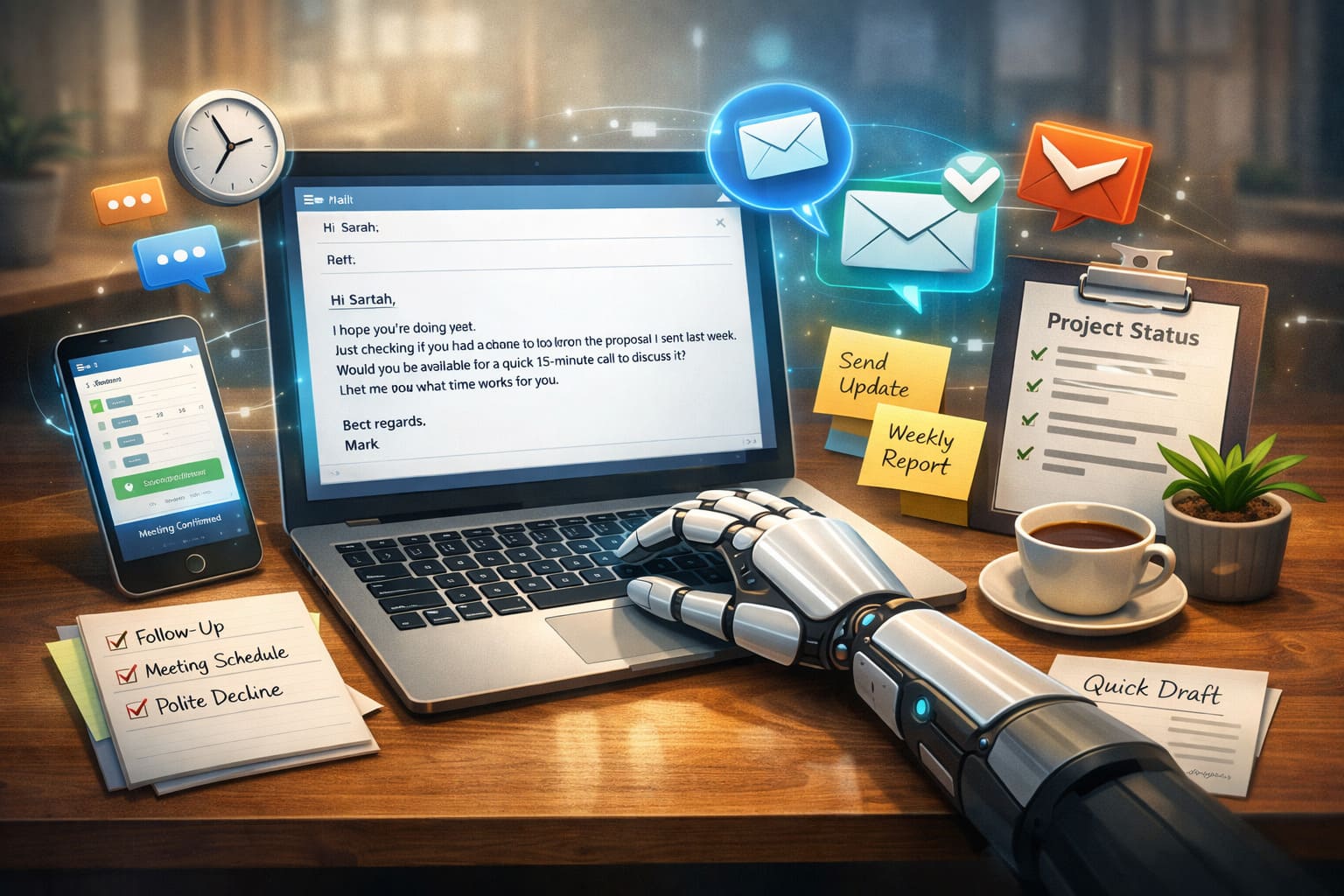
Most people don’t hate email because of writing. They hate email because of context switching. You’re deep in a task, then you jump into a thread with different people, urgency, and tone. AI can reduce that switching cost by producing a clear draft fast.
Common email types AI handles well
- Follow-ups that feel awkward to write
- Scheduling emails and confirmations
- Polite rejections and boundary-setting
- Status updates and weekly summaries
A realistic micro-template you can reuse
When you prompt, include: who, why, tone, and next step. Example:
- “Compose a concise and friendly follow-up message for a client with no response after seven days. Goal: confirm they saw the proposal and offer a 15-minute call. Keep it under 90 words.”
Privacy and Safety Basics (Don’t Skip This)
AI productivity tools often process text you paste into them. That can include sensitive information: client details, internal plans, or personal data. Before you rely on any tool, read its privacy terms and decide what you should not paste.
For general guidance on trustworthy and risk-aware AI use, the NIST AI Risk Management Framework provides a clear and widely trusted reference.
What We’ve Observed / Practical Notes
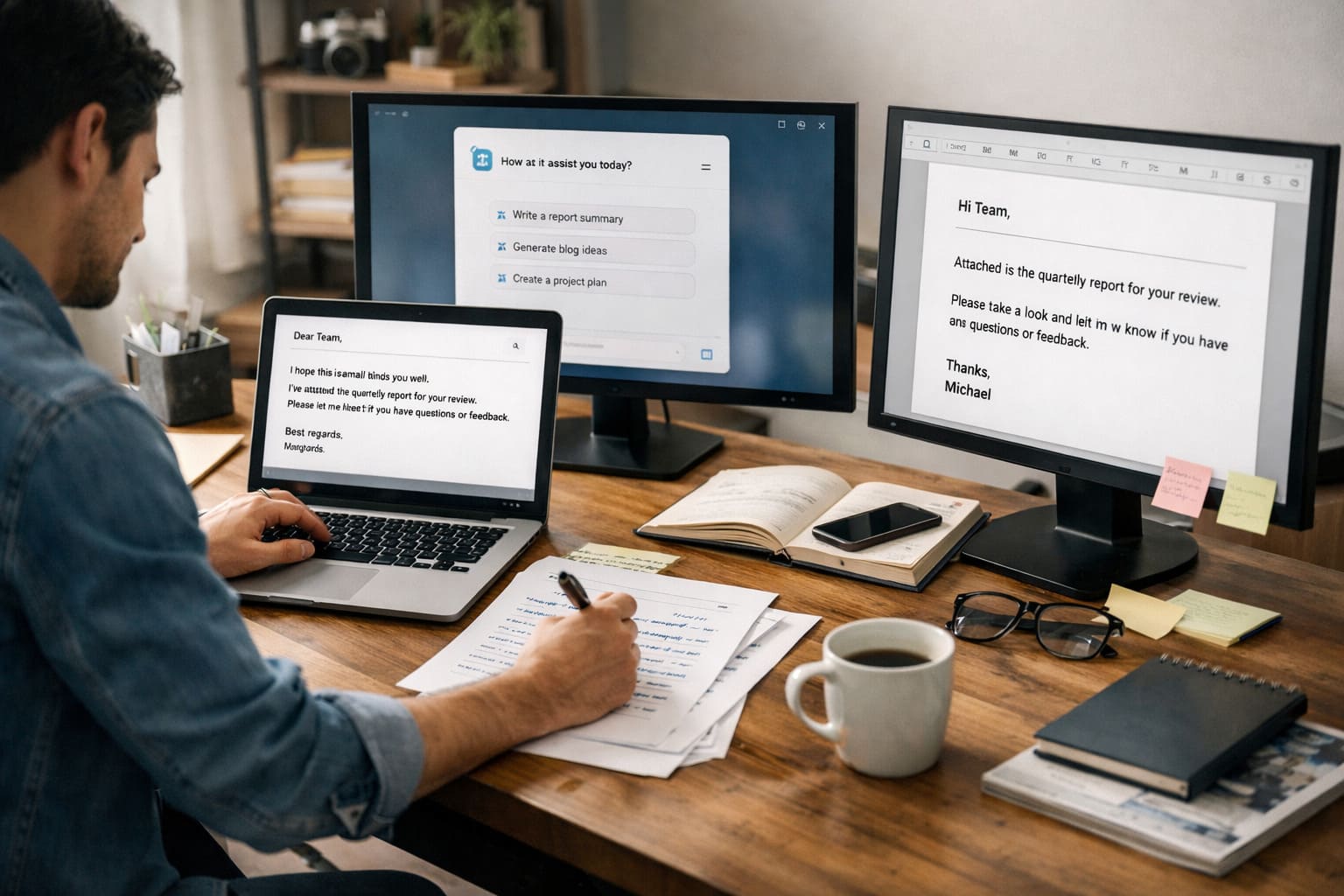
In many real-world scenarios, the biggest productivity wins don’t come from “one perfect AI tool.” They come from a simple habit: use AI to get to a decent first draft fast, then apply human judgment.
A common pattern we see is that people who feel disappointed by AI outputs usually do one of these:
- They give vague prompts (“write a professional email”) and expect a perfect result
- They skip editing, so the message feels robotic or slightly off
- They try to automate too much at once, then abandon the workflow
On the flip side, people who love AI tools treat them like a “drafting engine.” They still own the final version, but they stop paying the blank-page tax.
Common Mistakes That Kill Productivity (and How to Fix Them)
Mistake 1: Using AI as a copy-paste machine
Copy-pasting without review is where quality breaks. Fix: always do a quick “human pass” for names, numbers, promises, and tone.
Mistake 2: Asking for results without constraints
AI needs boundaries. Fix: specify length, audience, tone, and what must be included or avoided.
Mistake 3: Making email automation feel spammy
If your “automation” reads like a template blast, people will ignore it. Fix: add one real detail (context, timeline, or a specific question) so it feels personal.
Mistake 4: Forgetting that email is also a security surface
If you automate outreach or forms, treat them as part of a system—not just writing. Phishing and business email compromise often succeed because messages look legitimate. For a practical overview of email security fundamentals, Cloudflare’s guide is a solid starting point: What Is Email Security?.
Actionable Steps: A Simple AI Productivity Workflow
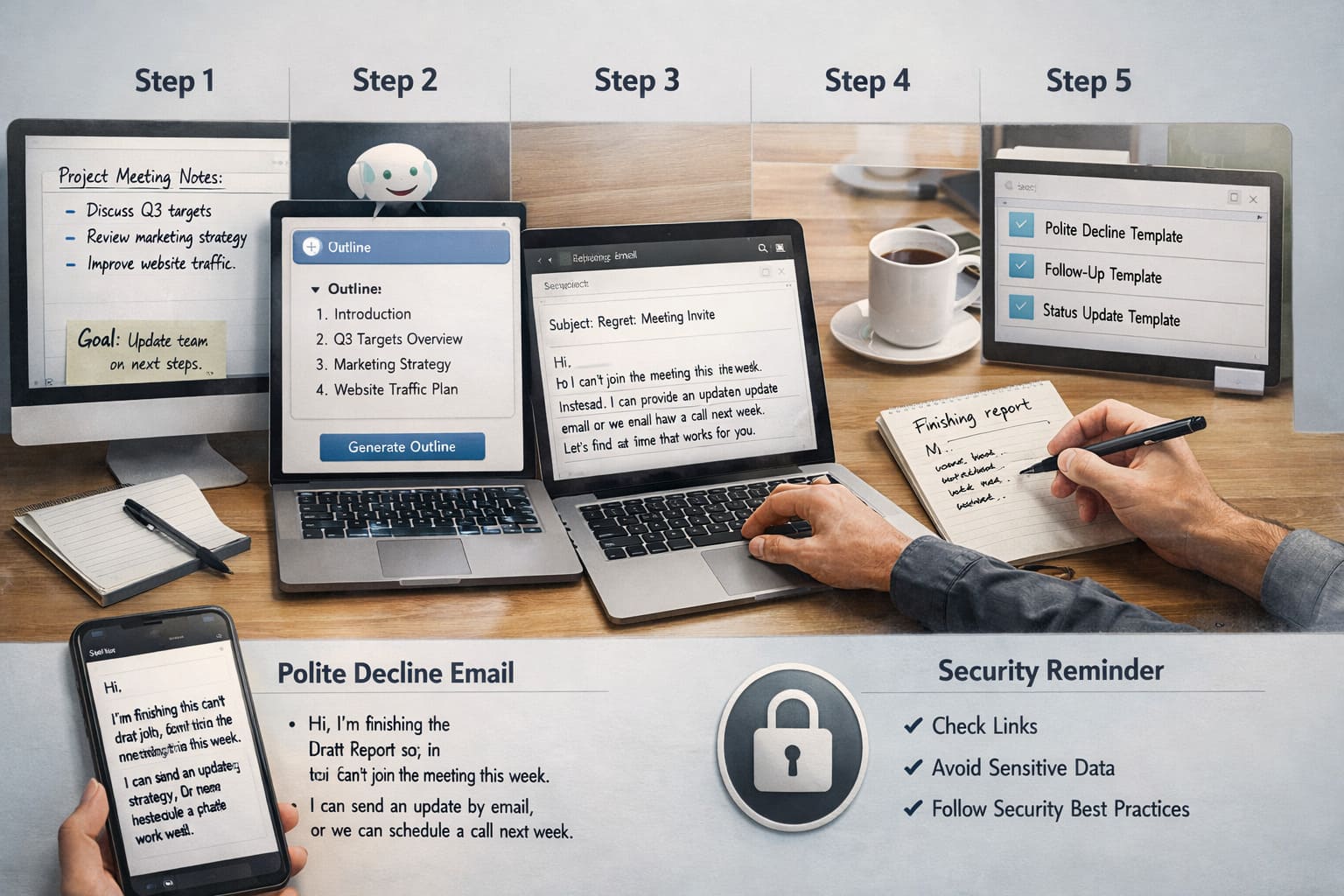
If you want something you can implement today, use this loop. It works for resumes, emails, and documents.
Step 1: Dump the raw input
- Paste your rough notes, bullets, or messy draft
- Include the audience and goal in 1–2 sentences
Step 2: Ask for structure first
Instead of “write the final version,” ask for an outline, sections, or bullet points. It’s easier to review structure than polished paragraphs.
Step 3: Generate a draft with constraints
- Word limit (example: 120 words)
- Tone (friendly, firm, neutral)
- Must-include elements (deadline, call to action)
Step 4: Human edit pass (60 seconds)
- Remove fluff and repeated phrases
- Replace generic lines with one specific detail
- Check for unintended promises (“I can deliver by tomorrow”)
Step 5: Save the best prompts as templates
This is the underrated trick. The real productivity boost comes when you stop reinventing prompts. Store your best resume prompt, follow-up prompt, and “status update” prompt.
Mini Example: “Polite No” Email in 30 Seconds
One of the most common time-wasters is writing a decline that doesn’t sound cold. A good AI prompt here is: “Write a polite, warm decline to a meeting invite. I can’t join this week. Offer two alternatives: an async update by email, or a call next week. Keep it under 110 words.”
Then do a fast human edit: add one real detail (“I’m finishing the draft report”) and remove any lines that feel overly formal. That’s the difference between “AI-sounding” and “human-sounding.”
Security Note for Automated Workflows
Validate links, avoid sharing sensitive data, and follow established security guidance as a baseline. The OWASP Top 10 is a widely used awareness resource for understanding common risks in web and application security.
Resume Checklist (Quick and Honest)
- Each bullet starts with a clear action verb
- Bullets describe outcomes, not just duties
- Keywords match the role (without copying the posting word-for-word)
- Formatting is consistent and easy to scan
- Everything is truthful and defensible in an interview
Email Automation Checklist (Human and Professional)
- Subject line is specific (not “Quick question”)
- First sentence provides context
- One clear request or next step
- Short paragraphs (mobile-friendly)
- Avoids aggressive urgency unless truly necessary
Responsible Use: Quality, Bias, and Governance
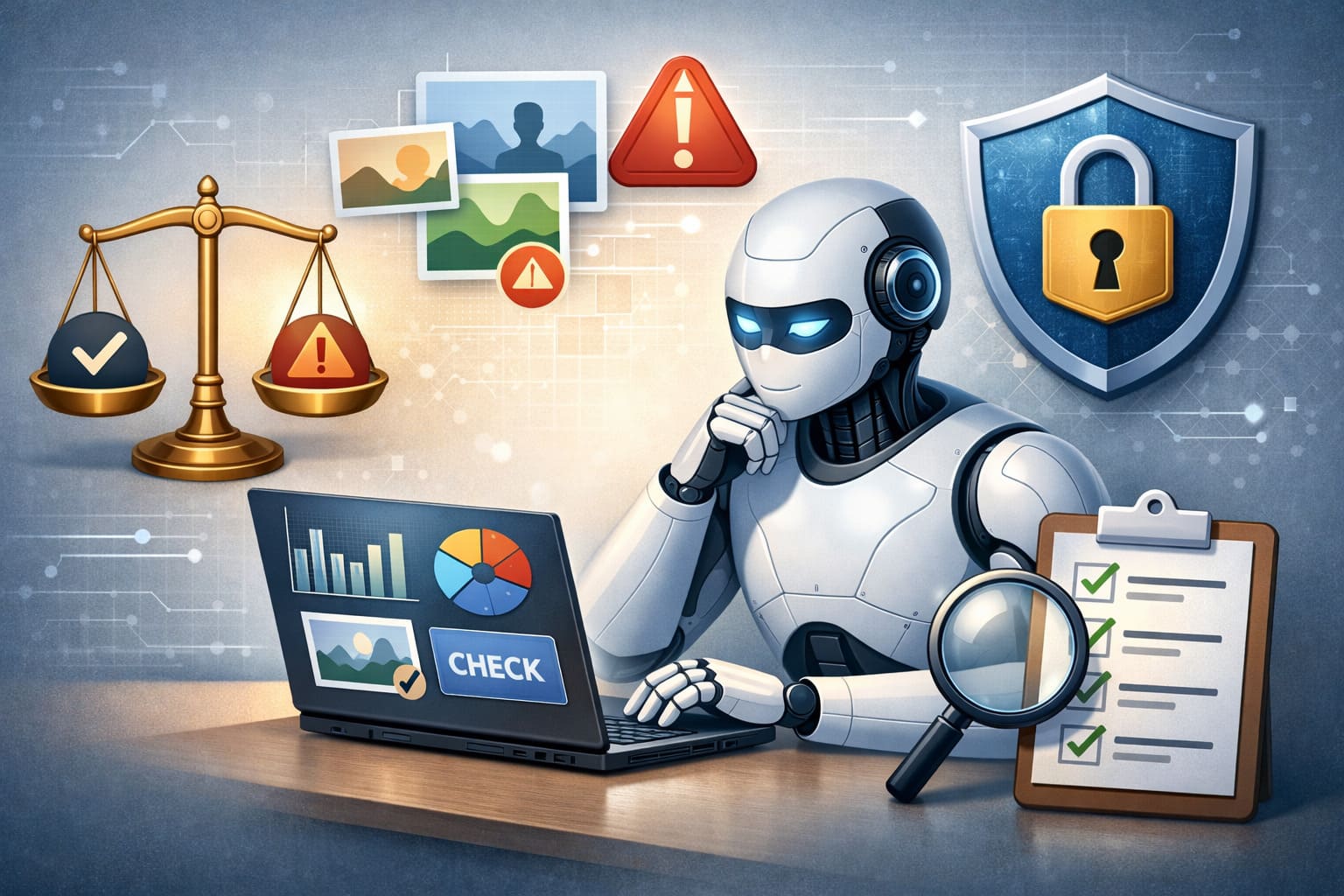
AI outputs can reflect limitations or bias in the data and assumptions behind them. Treat AI-generated content as informed suggestions, not absolute truth. For a high-level perspective on ethical and responsible use, Microsoft’s Responsible AI principles offer a clear and practical overview.
For teams that need to adopt AI with security and risk awareness in mind, the CISA AI resources provide helpful guidance on evaluating and managing potential risks.
Frequently Asked Questions (FAQ)
No. AI productivity tools are designed to support human work, not replace it. In everyday use, they handle repetitive tasks like drafting, structuring, or summarizing, while humans remain responsible for judgment, creativity, and final decisions. This balance is what makes AI useful rather than disruptive.
They can be safe if used responsibly. Avoid sharing sensitive personal or confidential information, and always review AI-generated content before sending or submitting it. For a broader discussion on responsible AI use, you can also explore how AI-related risks are evolving.
The most effective approach is to use AI for clarity and structure, not exaggeration. Let AI help rewrite bullet points, remove vague wording, and align your experience with job requirements, while keeping everything truthful and defensible. Pairing this with strong writing tools can significantly improve results.
Yes, especially by reducing the time spent drafting and rewriting emails. AI works best for follow-ups, status updates, scheduling messages, and polite declines. When combined with focused workflows like AI-assisted time blocking, it can significantly reduce daily communication fatigue.
No technical background is required. Most AI productivity tools are built around natural language, meaning you interact with them by typing normal instructions. The key skill is learning how to give clear prompts and reviewing the output carefully.
Use AI as a drafting and support tool, not as the final authority. Always review, edit, and apply your own reasoning. A healthy workflow keeps humans in control while AI handles repetitive friction, similar to how a well-designed AI-powered second brain supports thinking without replacing it.
Conclusion: Working Better, Not Faster
Productivity is not about racing against time—it is about reclaiming it. When used thoughtfully, AI tools do not make work feel mechanical or impersonal. Instead, they remove the quiet friction that drains energy day after day.
By helping with drafts, structure, and clarity, AI gives people something more valuable than speed: mental space. Space to think clearly, communicate with intention, and focus on work that truly matters.
Real progress happens when technology fades into the background and your intent moves forward—calmer, clearer, and more confident than before.